Analytics & Dashboard
All analytics are built into the Dashboard — one place to track chatbot performance, measure customer engagement, and monitor conversion metrics. No separate Analytics tab is needed.
Overview
Starting with v0.39.0, WooAI Chatbot Pro consolidates all analytics into the Dashboard. There is no longer a separate Analytics admin page — everything you need is in AI Chatbot → Dashboard. The Dashboard loads faster with a single unified surface and fewer backend requests.
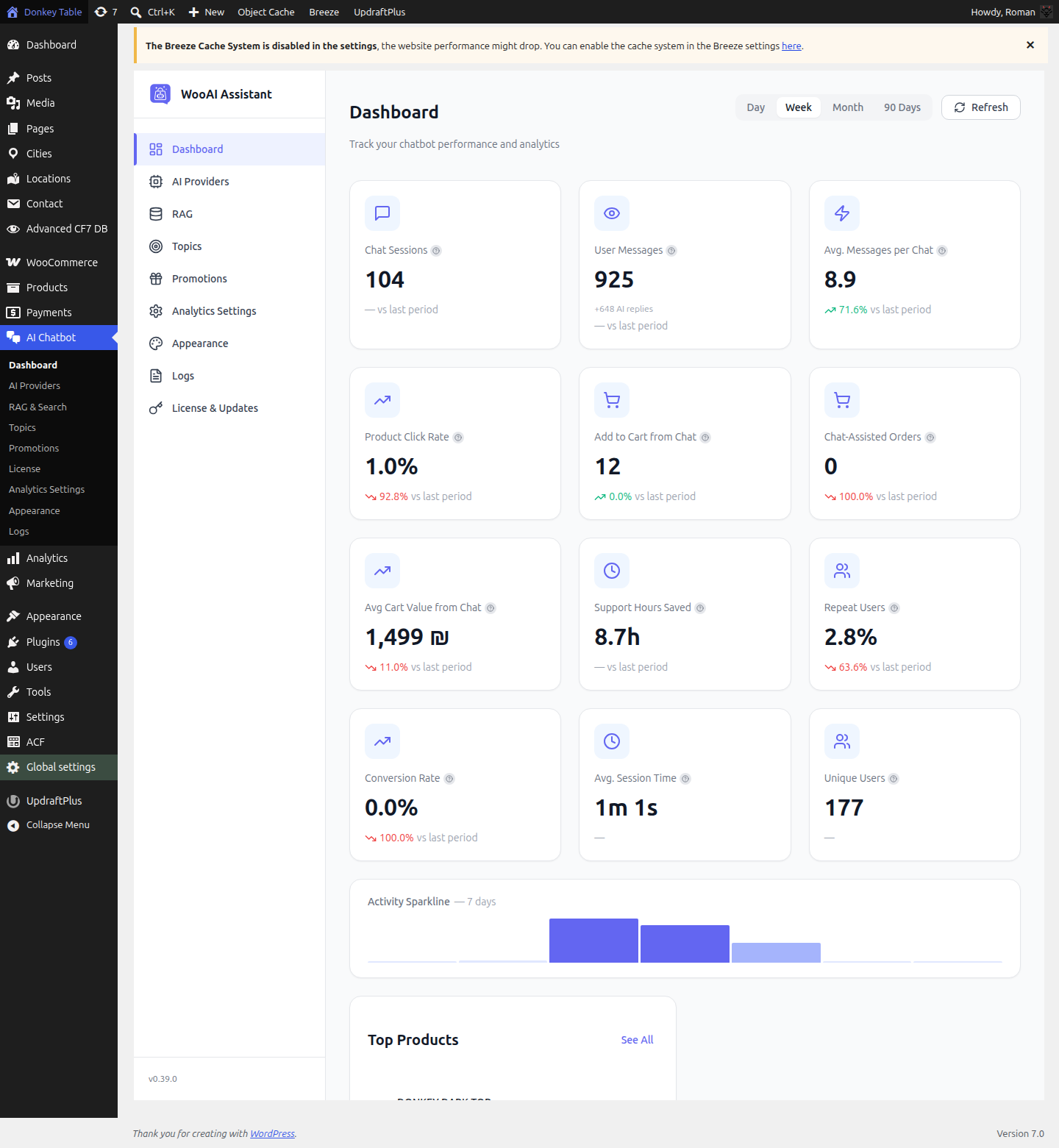
The standalone Analytics page was removed. All metrics, charts, and reports that were previously split across Dashboard and Analytics now live on a single Dashboard page. The Analytics Settings sub-menu item (for AI cost and manual support time configuration) still exists under the AI Chatbot menu.
Accessing the Dashboard
Navigate to AI Chatbot → Dashboard in your WordPress admin menu. This is the default landing page when you click the “AI Chatbot” menu item.
Use the date-range filter at the top right to switch between Day, Week, Month, and 90 Days views.
KPI Cards — All 12 Metrics
The Dashboard shows 12 KPI cards at a glance. Each card displays the current value, a trend vs. the previous period, and a tooltip explaining how the metric is calculated.
| Metric | What it measures | Good target |
|---|---|---|
| Chat Sessions | Unique chat sessions opened by visitors | Increasing trend |
| User Messages | Total messages sent by customers across all sessions | Higher = more engagement |
| Avg. Messages per Chat | Average number of customer messages per session | > 3 indicates good engagement |
| Product Click Rate | % of sessions where a product card was clicked | > 5% |
| Add to Cart from Chat | % of sessions that resulted in an add-to-cart via the chat | > 2% |
| Chat-Assisted Orders | Orders placed by shoppers who used the chat in the same session | Increasing trend |
| Avg Cart Value from Chat | Average order value for chat-assisted purchases | Compare vs store average |
| Support Hours Saved | Estimated support hours offset by AI (based on Analytics Settings config) | Higher = greater ROI |
| Repeat Users | % of chat users who return for a second or more session | > 20% |
| Conversion Rate | % of chat sessions that completed a purchase (single-session funnel) | > 1% |
| Avg. Session Time | Average duration of a chat session | Longer = more research-oriented shoppers |
| Unique Users | Distinct visitor identities who started at least one chat session | Increasing trend |
Dashboard Sections
Below the KPI cards, the Dashboard shows several analytical sections:
Activity Sparkline
A compact timeline chart showing conversation volume over the selected date range. Switch between Day/Week/Month/90-day views using the filter at the top.
Top Products & Top Queries (side by side)
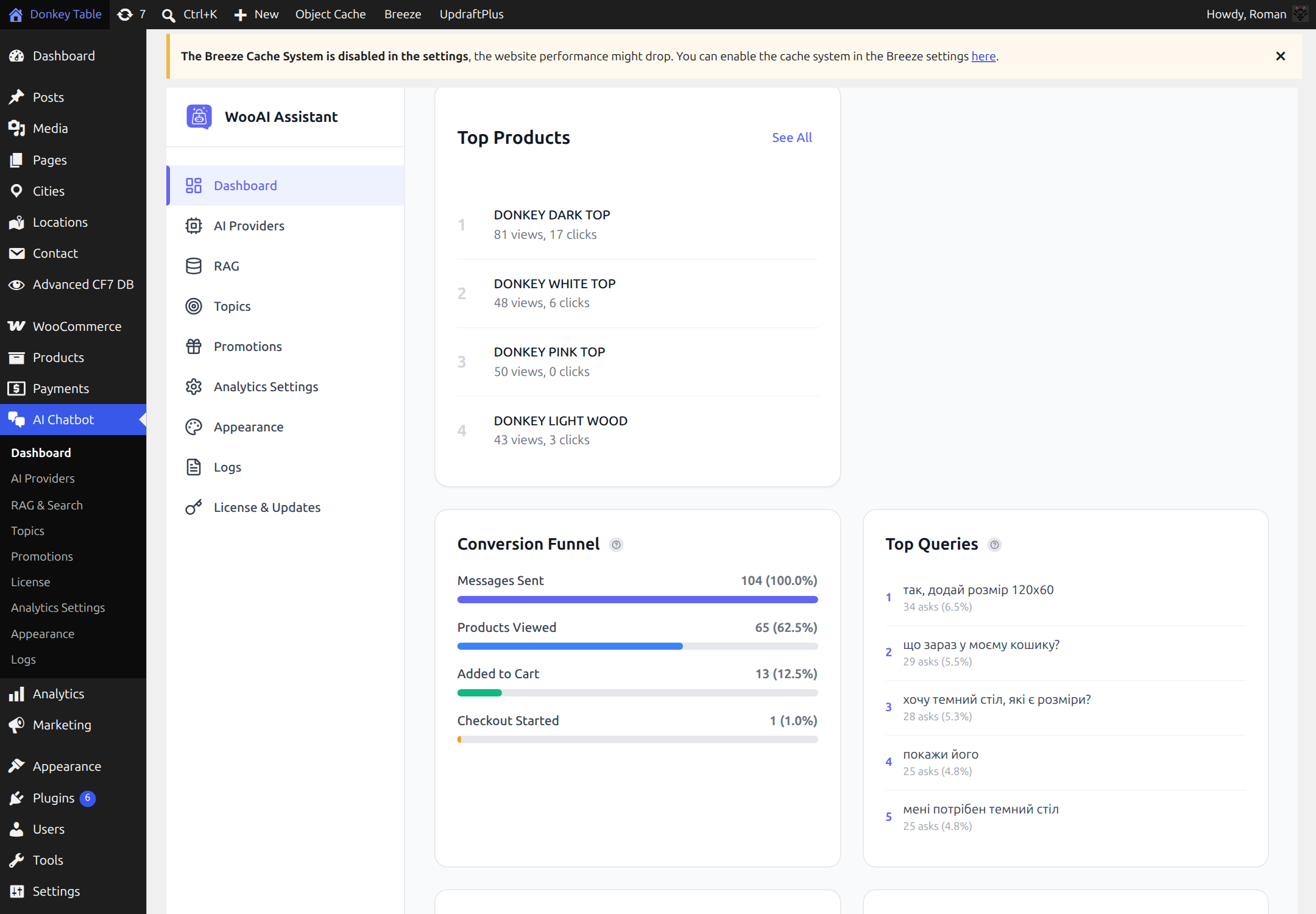
- Top Products — The most-viewed products in chat, with click and view counts. Click See All to expand the full list.
- Top Queries — The most common customer questions, ranked by frequency. Useful for identifying content gaps in your product catalog or knowledge base.
Conversion Funnel
A single-session funnel that tracks how shoppers move from a chat message to a completed checkout within the same session:
- Messages Sent — all messages in the period (baseline 100%)
- Products Viewed — sessions where a product card was clicked
- Added to Cart — sessions that added a product via chat
- Checkout Started — sessions that reached checkout
The funnel is full-width and shows absolute counts and percentages. Use it to identify where shoppers drop off.
AI Fallback Rate & Human Escalation Rate
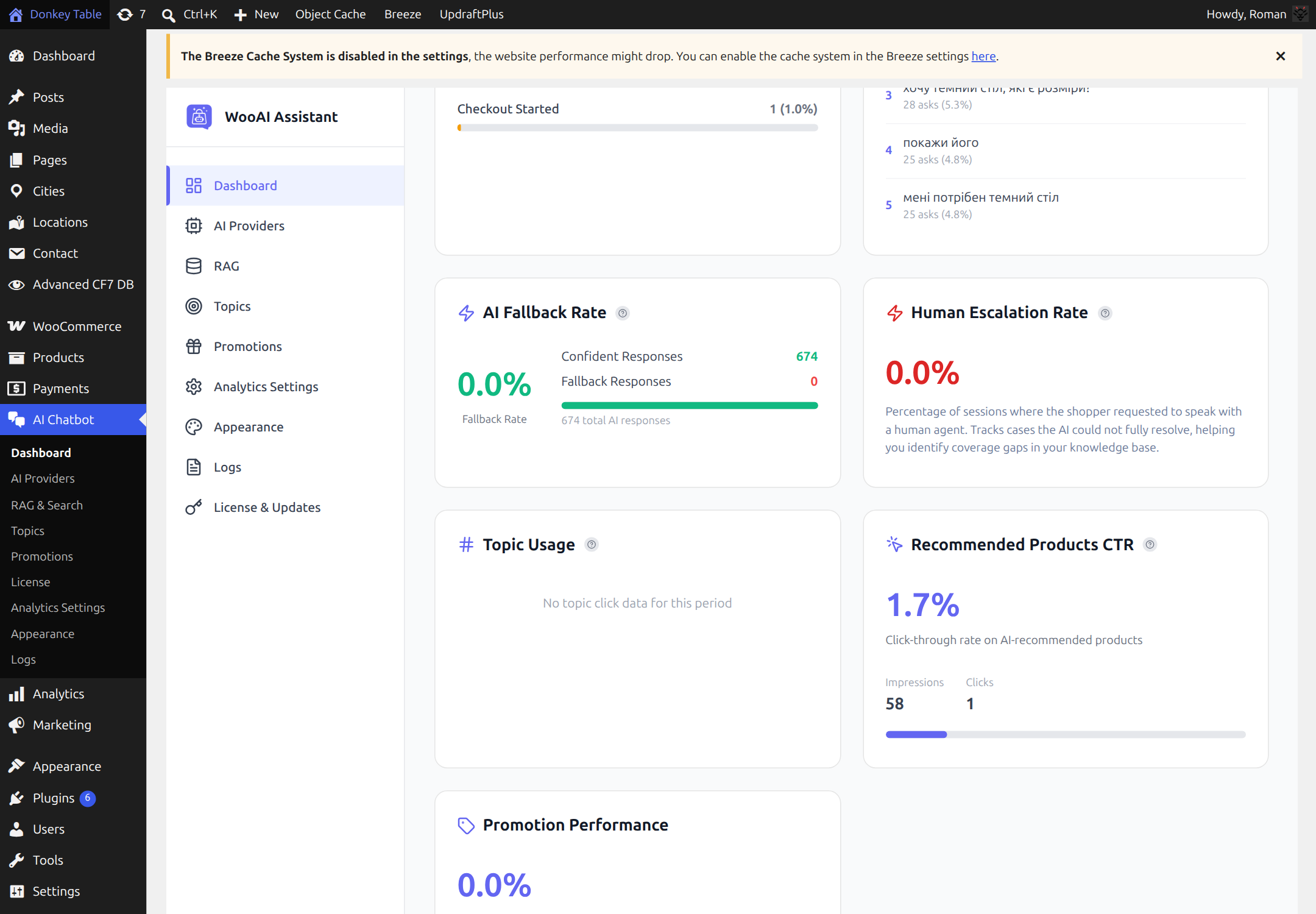
- AI Fallback Rate — % of responses where the AI fell back to a generic answer (could not fully resolve). Lower is better. Shows confident vs. fallback response counts.
- Human Escalation Rate — % of sessions where the shopper requested a human agent. Track this to identify knowledge-base gaps.
Topic Usage
Shows which conversation topics (configured in the Topics admin section) were triggered most frequently. Use this to tune your topics and playbooks.
Recommended Products CTR
Click-through rate on AI-recommended products shown as cards in chat. Breaks down total views vs. clicks.
Promotion Performance
Tracks how often active promotional messages (configured in Promotions) were shown and clicked during chat sessions.
Analytics Settings (Third-Party Integrations)
To configure Google Analytics 4, Meta Pixel, Mixpanel, or the cost/ROI estimation inputs, go to AI Chatbot → Analytics Settings — this sub-page still exists and contains all third-party integration settings.
Google Analytics 4
-
Get your Measurement ID
In GA4: Admin → Data Streams → Select your web stream → Copy the Measurement ID (starts with
G-). -
Paste in Analytics Settings
Go to
AI Chatbot → Analytics Settings→ enable Google Analytics 4 → paste the Measurement ID. -
Verify with DebugView
In GA4, open Admin → DebugView and trigger a chat interaction to see events arrive in real time.
If GA4 is already installed via GTM or direct snippet, WooAI automatically uses the existing gtag instance — no duplicate tag needed.
GA4 Events Tracked
Meta Pixel Integration
-
Get your Pixel ID
In Meta Business Suite: Events Manager → select your pixel → copy the Pixel ID (numeric).
-
Paste in Analytics Settings
Go to
AI Chatbot → Analytics Settings→ enable Meta Pixel → paste the Pixel ID. -
Verify
Use the Meta Pixel Helper Chrome extension to confirm events are firing.
Mixpanel Integration
-
Get your Project Token
In Mixpanel: Settings → Project Settings → copy the Project Token.
-
Paste in Analytics Settings
Go to
AI Chatbot → Analytics Settings→ enable Mixpanel → paste the token. -
Enable User Identification
Toggle Identify Users to link chat sessions to logged-in WooCommerce customers.
Complete Event Reference
| Event | GA4 | Meta | Mixpanel |
|---|---|---|---|
| Chat Opened | ✓ | ✓ | ✓ |
| Message Sent | ✓ | – | ✓ |
| Product Inquiry | ✓ | ✓ | ✓ |
| Add to Cart (via chat) | ✓ | ✓ | ✓ |
| Playbook Triggered | ✓ | – | ✓ |
| Email Collected | ✓ | ✓ | ✓ |
| Chat Closed | ✓ | – | ✓ |
| Session Ended | ✓ | – | ✓ |
Privacy & Compliance
WooAI Chatbot Pro is designed with privacy in mind and supports GDPR compliance.
- No PII in events: Analytics events do not include personally identifiable information by default
- Anonymization: User IDs are hashed before being sent to analytics platforms
- Consent integration: Respects cookie consent settings — supports CookieYes, Complianz, GDPR Cookie Consent, and Borlabs Cookie
In GDPR regions, ensure you have proper consent before enabling analytics tracking. WooAI fires analytics events only after consent is granted when a consent management platform is detected.
Disabling analytics
- Go to
AI Chatbot → Analytics Settings - Toggle OFF all third-party analytics platforms
- Optionally disable built-in dashboard data collection
- Save settings
Troubleshooting
Dashboard shows no data
- Confirm the chat widget is active and visible on the front end
- Check that real conversations have occurred in the selected date range
- Select a different date range (try 30 Days or 90 Days)
- Clear WordPress transient cache
GA4 events not appearing
- Verify your Measurement ID starts with
G- - Use GA4 DebugView in real time
- Clear browser cache and test in incognito mode
- Check browser console for JavaScript errors
Meta Pixel events missing
- Confirm Pixel ID is numeric (not alphanumeric)
- Use Meta Pixel Helper Chrome extension
- Check Events Manager for incoming events
Mixpanel not receiving data
- Verify the Project Token is correct
- Check Mixpanel Live View for events
- Confirm user identification is set up if tracking registered customers