AI Providers
Connect the AI model that writes your chatbot’s answers, set a fallback provider, and add rules that control how it speaks.
Overview
WooAI needs at least one AI provider key to answer anything. You configure a Primary Provider and, optionally, a Secondary Provider that takes over automatically if the primary fails or hits a rate limit.
Three providers are supported:
- Google Gemini. Our recommendation. Fast, cheap, and the free tier is enough to start.
- OpenAI. A solid fallback, so an outage at one vendor does not take your bot down.
- Anthropic Claude. Also supported.
Gemini as primary, OpenAI as fallback. It keeps costs down and it survives one vendor going dark.
Getting a Google Gemini Key
-
Open Google AI Studio
Go to aistudio.google.com/apikey and sign in with your Google account.
-
Accept the terms
On first use, accept the Terms of Service. Google creates a default project for you automatically.
-
Create the key
Click Create API key and copy the value. Store it somewhere safe. Treat it like a password.
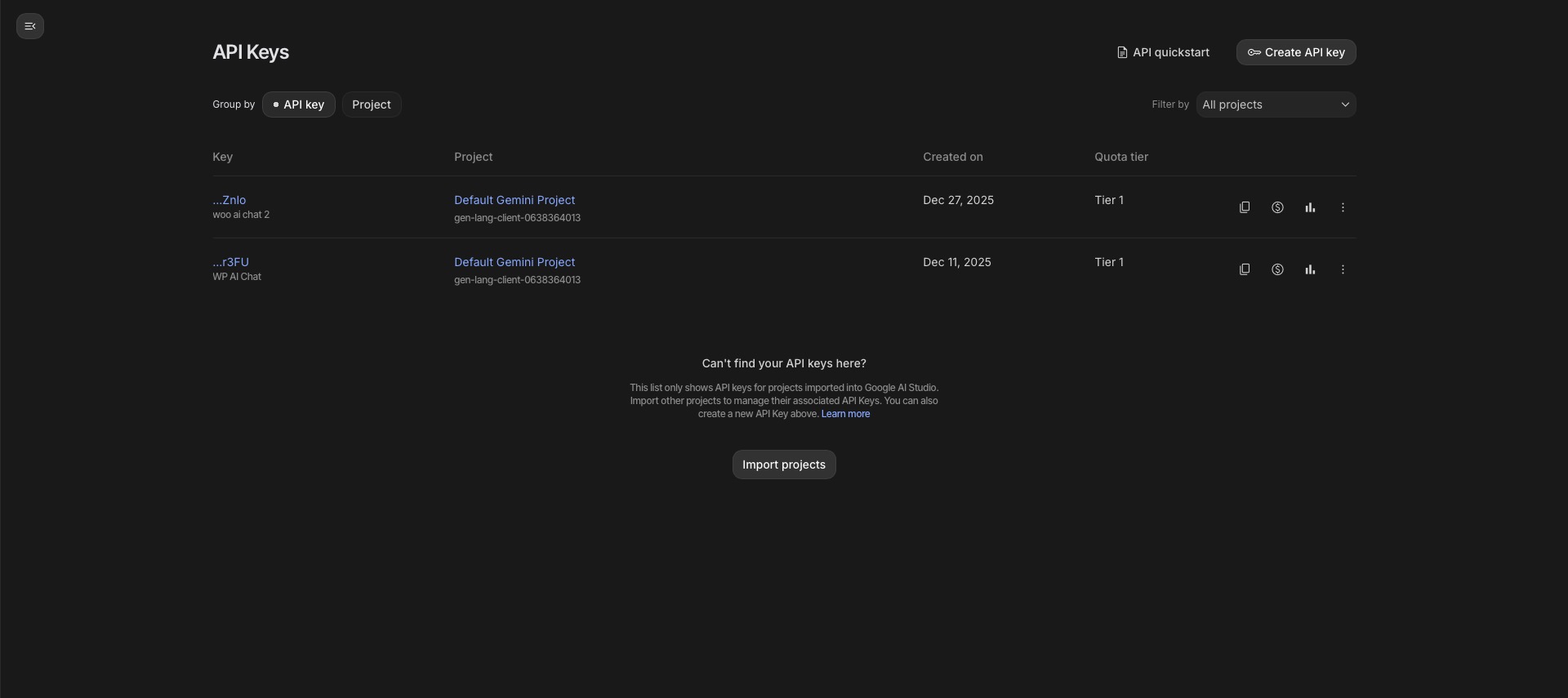
Google is retiring the older “standard” API keys: since June 2026 unrestricted ones are already rejected, and they stop working entirely in September 2026. Keys created in AI Studio today are the newer authorisation type and are unaffected. If you have an old key lying around from a previous experiment, generate a fresh one instead.
Getting an OpenAI Key
-
Open the OpenAI platform
Go to platform.openai.com/api-keys and sign in.
-
Create a secret key
Click Create new secret key, name it (for example “WooAI”), and copy it. OpenAI shows the value only once.
-
Add billing
OpenAI requires a payment method and credit before the API will answer. Add it under Settings → Billing.
Getting an Anthropic Claude Key
-
Open the Anthropic Console
Go to console.anthropic.com and sign in.
-
Create a key
Under API Keys, create a new key and copy it.
Configuring Providers in WooAI
-
Open the screen
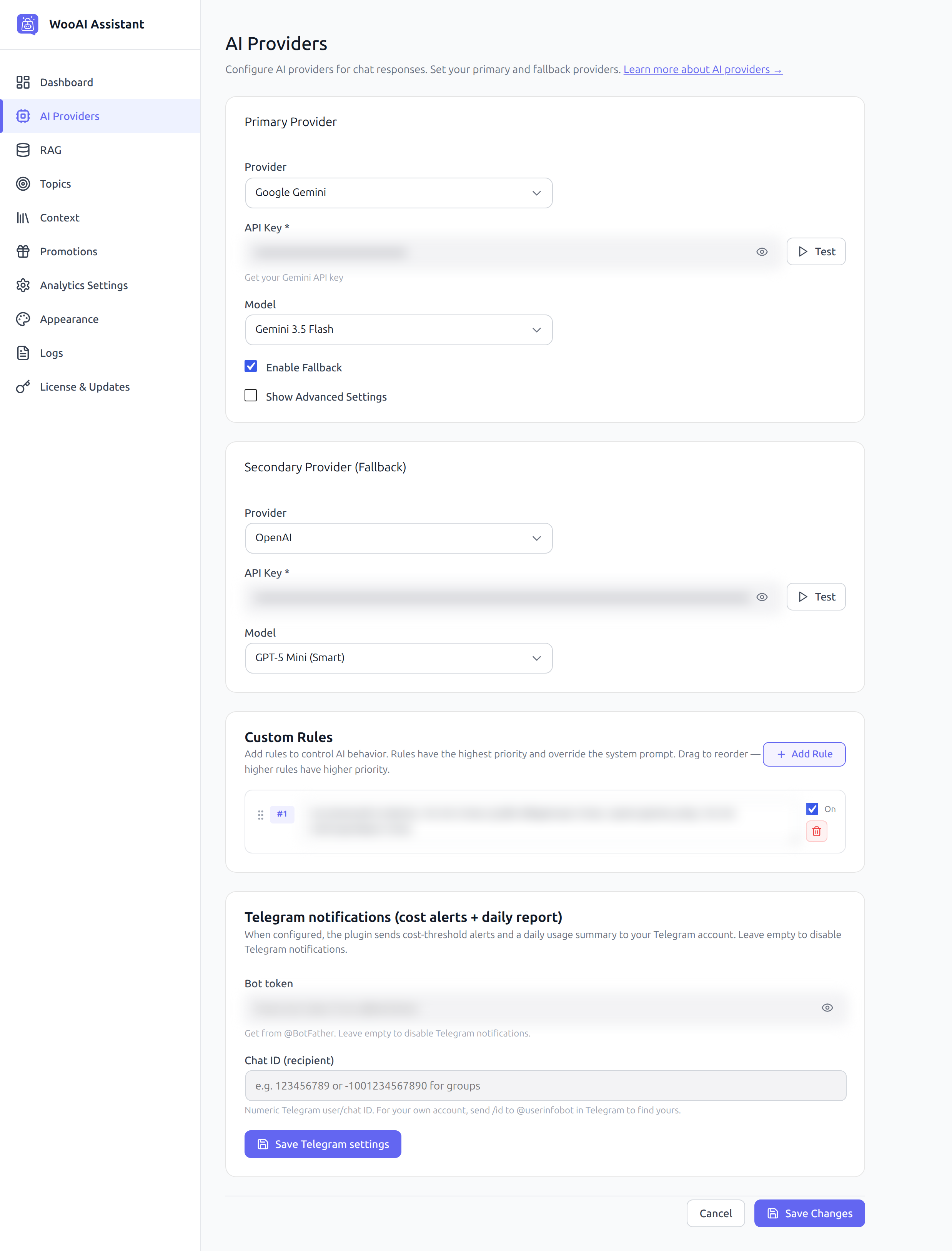
In WordPress admin go to AI Chatbot → AI Providers.
-
Choose the primary provider
In the Primary Provider card, pick your provider from the Provider dropdown.
-
Paste the API key
Paste it into API Key. The eye icon reveals the value if you need to check it.
-
Test the key
Click Test next to the field. If a fresh install stays silent, the key is the first thing to check.
-
Pick a model
Choose from the Model dropdown. See the table below.
-
Enable the fallback (recommended)
Tick Enable Fallback, then fill in the Secondary Provider (Fallback) card with a second provider, its key and a model.
-
Save
Click Save Changes.
Choosing a Model
Google Gemini
| Model | Best for |
|---|---|
| Gemini 3.5 Flash | The strongest Gemini option, and the one to use on a live store |
| Gemini 3.1 Flash Lite (Latest) | Newest preview, very fast |
| Gemini 2.5 Flash (Stable) | Stable general-availability release |
| Gemini 2.5 Flash Lite (Cheapest) | Lowest cost, simplest conversations |
OpenAI
| Model | Best for |
|---|---|
| GPT-5 Mini (Smart) | Stronger reasoning, good as a fallback |
| GPT-4.1 Mini (Fast, 1M ctx) | Fast, non-reasoning, very large context |
Anthropic Claude
| Model | Best for |
|---|---|
| Claude Sonnet 4.5 (Best quality) | Highest quality answers |
| Claude Haiku 4.5 (Fast) | Faster and cheaper |
The “lite” models struggle with multi-step shopping conversations: picking a size, confirming an add to cart, handling a follow-up question. On a live store that shows up as the bot missing instructions or answering slowly. Start with Gemini 3.5 Flash or Gemini 2.5 Flash. Drop to a cheaper model only if cost becomes a problem.
Custom Rules
Custom rules are short instructions that override the default behaviour. They are the highest-priority thing the model is told. Use them for the specifics of your business:
- How to describe a product category (“these are multi-purpose tables, not only dining tables”)
- Things the bot must never say or promise
- Tone of voice, or a language rule
Click Add Rule to create one. Drag rules to reorder them; the higher a rule sits, the higher its priority. Each rule has an On switch, so you can turn one off without deleting it.
One instruction per rule, phrased as a direct command. Long rules are harder for the model to follow, so split them up.
Telegram Notifications (Optional)
WooAI can send cost-threshold alerts and a daily usage summary to Telegram.
-
Create a bot
In Telegram, message @BotFather, create a bot and copy the token it gives you.
-
Find your chat ID
Send
/idto @userinfobot in Telegram to get your numeric ID. -
Fill in the fields
Paste both values into Bot token and Chat ID (recipient), then click Save Telegram settings.
Leave the fields empty to keep Telegram notifications off.
Troubleshooting
The bot does not answer at all
Open AI Providers and click Test next to the API key. If the test fails, the key is wrong, revoked, or the account has no billing set up.
The key worked yesterday and fails today
For Gemini, check whether you are on an older “standard” key. Those are being retired, so create a fresh one in AI Studio. For OpenAI, check that the account still has credit.
Answers are slow
Try a faster model, and check the Logs screen for repeated retries or fallback switches.
The bot ignores an instruction you gave it
Put the instruction into Custom Rules rather than the welcome message or the Context screen. Rules outrank both.